Introduction
Facebook is more than just a social media platform—it also collects and stores your location history. This feature allowed Facebook to track your movements periodically and save them for personalized services like ads, weather alerts, and “Nearby Friends.”
Because location data is sensitive, many users raised concerns about privacy. In response, Facebook announced changes to how it handles location history. This guide explains how Facebook location history worked, how to view and delete it on older versions, and what has changed in recent updates.
Facebook Location History Updates
- On May 31, 2022, Facebook stopped recording new location data.
- By July 2022, all previously stored location history was deleted.
- Features like Nearby Friends and background location tracking were discontinued.
- You can still tag your location in posts and receive location-based ads, but the dedicated location history feature is gone in newer versions.
How to Check Facebook Location History on Older Versions
On Web
- Log in to Facebook via a browser.
- Click the arrow in the top-right corner → Settings.
- Find Location History and select Edit.
- Toggle the feature on or off.
On Android
- Open the Facebook app → Menu icon.
- Tap Security & Privacy → Settings → Privacy.
- Select Location → Location Access.
- Adjust Location Services permissions.
On iPhone
- Open the Facebook app → Menu icon.
- Tap Security & Privacy → Settings → Privacy.
- Select Location → Location Access.
- Set permissions to Never or Ask Next Time.
Once enabled, you could view your location history by:
- Navigating to Settings & Privacy → Settings → Privacy → Location History.
- Selecting View Your Location History.
- Entering your password when prompted.
How to Delete Facebook Location History
If you don’t want Facebook storing your location history, you can delete it:
- Go to Location History in your Facebook settings.
- Tap the three-dot menu in the top-right corner.
- Choose one of two options:
- Delete This Day: Removes history for a specific day.
- Delete All Location History: Wipes all stored data.
Why You Might Need to Check Location History
- Account security: Detect if someone accessed your account from another location.
- Lost device recovery: Pinpoint where your phone was last used.
- Family tracking: See where a loved one has been if logged into your account.
Alternative Tracking for Parents
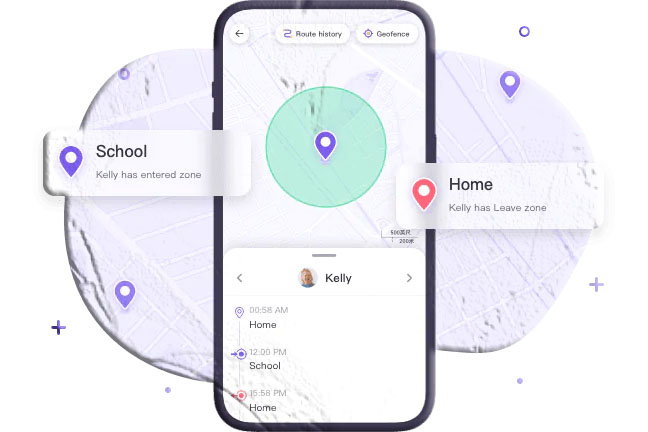
While Facebook no longer offers location history, parental control apps like FreeSpy Parental Control provide real-time GPS tracking.
Features include:
- Location history and live tracking.
- Geo-fencing alerts when kids enter or leave safe zones.
- One-way audio monitoring of surroundings.
- App activity monitoring.
Setup:
- Install FreeSpy Parental Control on your device.
- Install FreeSpy Kids on your child’s phone.
- Link devices and configure settings.
Conclusion
Facebook’s decision to discontinue location history reflects growing privacy concerns. While older versions allowed users to view and delete stored data, newer versions no longer support this feature. If you need ongoing location tracking, third-party parental control apps like FreeSpy provide more advanced options.
FAQs About Facebook Location History
- Why did Facebook delete location history? Facebook claimed the feature was underused and responded to privacy concerns.
- Is Facebook location history accurate? Yes, it used GPS and Wi-Fi data to provide precise tracking.
- Can I see someone else’s location history? No, unless they share their account or give explicit access.
- How often was location history updated? Constantly, as long as the device had internet access.
- How did Facebook location history work? It relied on GPS/Wi-Fi signals and stored data on Facebook servers.
- Can I turn off Facebook location tracking now? Yes, you can disable location access in app or device settings.