
Losing a smartphone is stressful enough—but losing an iPhone when you only have an Android device nearby can feel even more complicated. Apple and Google operate in different ecosystems, and their services don’t always communicate seamlessly. Yet situations arise where cross‑platform tracking becomes essential: a misplaced iPhone, a family member who needs help, or a child whose safety you want to ensure.
The good news is that tracking an iPhone from an Android device is possible. It simply requires using the right tools and understanding their limitations. This guide breaks down three effective methods—each suited to different needs—so you can choose the one that fits your situation.
Understanding the Cross‑Platform Challenge
Apple’s ecosystem is designed to work best with other Apple devices. Features like Find My iPhone, AirTag tracking, and device alerts are optimized for iOS, iPadOS, and macOS. Android users don’t have access to the Find My app, which means they must rely on web‑based tools or third‑party solutions.
Despite these limitations, three methods stand out:
- Using iCloud’s Find Devices website
- Using Google Maps Timeline or Location Sharing
- Using cross‑platform family‑safety apps
Each method has different strengths—some offer real‑time tracking, others provide historical data, and some offer advanced parental‑control features. Below, you’ll find a detailed breakdown of how each one works.
Method 1: Track an iPhone Using iCloud’s Find Devices Website
Apple’s Find My network is one of the most powerful device‑tracking systems in the world. Even without the Find My app, Android users can access it through a browser.
What You Need Beforehand
- Find My iPhone must be enabled on the missing iPhone.
- Location Services must be turned on.
- You must know the Apple ID and password associated with the device.
Why This Method Works
The Find My network uses Bluetooth signals from millions of Apple devices worldwide to help locate missing iPhones—even when they’re offline or have very low battery. This makes it one of the most reliable tracking options available.
Pros
- Works from any browser on any device
- No app installation required
- Can locate devices even when offline (iOS 15+)
- Includes remote actions like sound alerts, Lost Mode, and data erasure
Cons
- Requires Apple ID login
- Some features are limited compared to using an Apple device
- Cannot track if Find My was disabled before the phone was lost
How to Track an iPhone Using iCloud on Android
- Open a browser on your Android phone. For privacy, consider using Incognito Mode or Private Browsing.
- Visit:
https://icloud.com/find - Sign in using the Apple ID linked to the missing iPhone.
- Select the missing iPhone from the list of devices.
- View the device’s location on the map.
- Choose from the available actions:
- Play Sound — Helps locate the phone nearby
- Lost Mode — Locks the device and displays a custom message
- Erase iPhone — Wipes data if recovery seems unlikely
- Log out when finished, especially if using someone else’s device.
Summary of Method 1
This is the most direct and reliable method for locating a missing iPhone. It’s free, secure, and doesn’t require installing anything on your Android device. If the iPhone is online—or even recently online—you’ll likely get an accurate location.
Method 2: Track an iPhone Using Google Maps Timeline or Location Sharing
Google Maps offers two features that can help track an iPhone from an Android device:
- Location Sharing (real‑time tracking)
- Timeline (location history)
These features work across platforms as long as the iPhone user has a Google account and has enabled the necessary settings.
What You Need Beforehand
- Google Maps installed on the iPhone
- Location Services enabled
- Location History enabled (for Timeline)
- Location Sharing enabled (for real‑time tracking)
- Active internet connection on the iPhone
Pros
- Works across Android and iOS
- Provides detailed location history
- Real‑time tracking available if sharing is enabled
- Free and easy to use
Cons
- Must be set up before the iPhone is lost
- Requires Google Maps to be installed on the iPhone
- Timeline is no longer available on the web after December 8, 2024
How to Set Up Google Maps Tracking on the iPhone
Step 1: Prepare the iPhone
- Install Google Maps from the App Store.
- Sign in with a Google account.
- Enable Location Services in iPhone Settings.
- Turn on Location History in Google Maps settings.
Step 2: Enable Real‑Time Location Sharing
- Open Google Maps on the iPhone.
- Tap the profile icon → Location Sharing.
- Choose Share with a person or Share via link.
- Select Until you turn this off for continuous sharing.
- Send the sharing link or invite to the Google account used on the Android device.
Step 3: View the Location on Android
- Open Google Maps on your Android phone.
- Sign in with the same Google account.
- The iPhone’s location will appear under Location Sharing.
Using Timeline (Location History)
If Timeline was enabled before the phone was lost:
- Open Google Maps on Android
- Tap your profile → Your Timeline
- Select a date to view past movements
Summary of Method 2
Google Maps is ideal for families, partners, or friends who want ongoing location sharing. It’s not a recovery tool unless it was set up beforehand, but it provides excellent real‑time tracking once enabled.
Method 3: Track an iPhone Using Cross‑Platform Family‑Safety Apps
Family‑safety apps are designed to work across Android and iOS, making them a strong option for parents or guardians who need continuous monitoring.
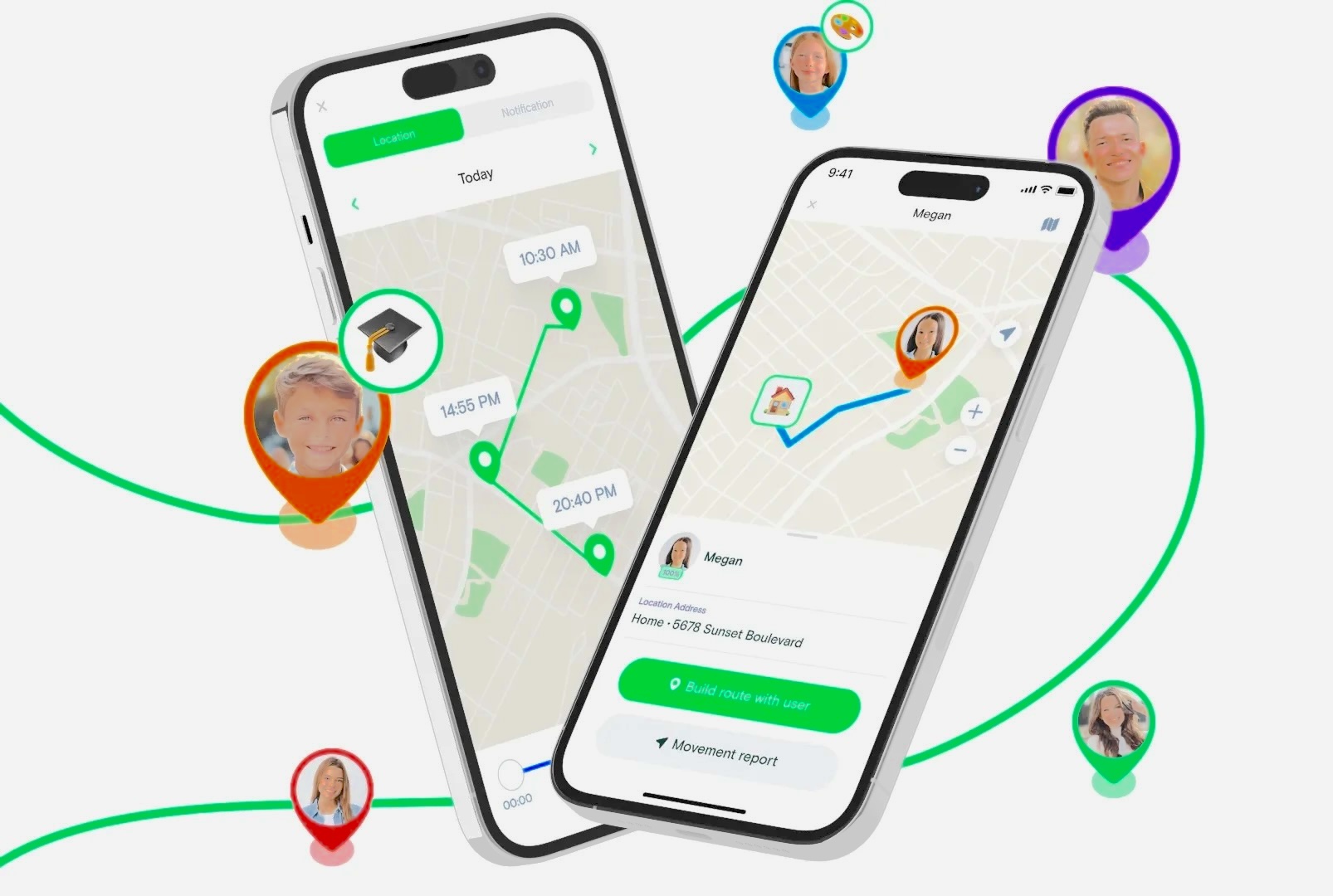
One example is AirDroid Parental Control, which provides real‑time location tracking, geofencing, and safety alerts.
What You Need Beforehand
- The app installed on both devices
- Permissions granted on the iPhone
- Consent from all parties involved
Pros
- Real‑time location tracking
- Geofencing alerts
- Screen‑time and safety features
- Works across Android and iOS
Cons
- Requires installation on both devices
- Some features may require a subscription
- Must be set up before tracking is needed
How to Use a Cross‑Platform Tracking App
Step 1: Install the Apps
- Install the parental‑control app on your Android device.
- Install the companion app (e.g., AirDroid Kids) on the iPhone.
Step 2: Link the Devices
- Follow the on‑screen instructions to pair the devices.
- Grant necessary permissions on the iPhone (location, notifications, etc.).
Step 3: Track the iPhone
- Open the app on your Android phone.
- Tap the GPS or Location section.
- View the iPhone’s real‑time location.
- Set up geofences if needed.
Summary of Method 3
This method is best for parents or guardians who want ongoing monitoring rather than one‑time device recovery. It offers the most features but requires setup and consent.
Which Method Should You Choose?
Your ideal method depends on your situation:
If the iPhone is lost:
Use iCloud Find Devices for the most accurate and immediate results.
If you want to share locations with a friend or partner:
Use Google Maps Location Sharing for real‑time updates.
If you want to monitor your child’s safety:
Use a cross‑platform family‑safety app with geofencing and alerts.
Comparison Table
| Feature | iCloud Find Devices | Google Maps Timeline | Google Maps Location Sharing | Family‑Safety Apps |
|---|---|---|---|---|
| Real‑time tracking | Yes | No | Yes | Yes |
| Location history | No | Yes | No | Yes |
| Geofencing | No | No | No | Yes |
| Works offline (Find My network) | Yes | No | No | No |
| Requires prior setup | Partial | Yes | Yes | Yes |
| Cost | Free | Free | Free | Varies |
Final Thoughts
Tracking an iPhone from an Android device is absolutely possible—you just need the right method for your situation. Whether you’re trying to recover a lost phone, stay connected with loved ones, or keep your child safe, these tools offer reliable cross‑platform solutions.
Each method has its strengths:
- iCloud is best for lost‑device recovery.
- Google Maps is ideal for ongoing location sharing.
- Family‑safety apps offer the most comprehensive monitoring features.