
Most people assume their internet provider can see everything they do online — and some even worry that their Wi‑Fi bill might show their search history. It’s an understandable concern, especially in a world where digital privacy feels increasingly fragile.
Here’s the reassuring truth: your Wi‑Fi bill does not show your search history, browsing history, or the websites you visit. Your bill only includes information related to your service plan, payment details, and usage totals — never a list of your online activities.
However, that doesn’t mean your browsing is completely invisible. To understand what’s actually visible, who can see it, and how to protect yourself, we need to look at how internet data works behind the scenes.
This comprehensive guide breaks down everything you need to know in clear, parent‑safe language.
Why Your Search History Never Appears on Your Wi‑Fi Bill
There are several important reasons why your browsing activity is not included on your monthly bill. These reasons involve privacy laws, technical limitations, and the sheer volume of data involved.
1. Privacy Regulations Protect Your Personal Data
Internet Service Providers (ISPs) operate under strict privacy rules. These regulations prevent them from sharing or publishing your browsing activity without legal justification.
Key points:
- ISPs may have the technical ability to see certain types of network traffic, but they cannot disclose it on your bill.
- Privacy laws require ISPs to protect your personal information from misuse.
- Bills are designed to show service charges, not personal activity.
This means your search history is not only absent from your bill — it is legally protected from being shared in that way.
2. The Data Volume Would Be Overwhelming
Imagine every website you visit, every search you make, and every click you perform being printed on a monthly bill. It would be thousands of pages long.
ISPs handle millions of data packets per second. Tracking and itemizing every user’s browsing history would be:
- impractical
- unnecessary
- extremely expensive
- useless for billing purposes
Your bill is meant to be simple and readable. Listing browsing history would defeat that purpose entirely.
3. ISPs Track Data Usage, Not Individual Searches
ISPs monitor how much data you use — not the specific content of your browsing.
Your bill may show:
- total data used
- overage charges (if applicable)
- plan limits
But it will never show:
- search terms
- website URLs
- timestamps of browsing
- content viewed
ISPs focus on network performance and bandwidth, not your personal browsing habits.
Can Someone See Your Browsing History Through Wi‑Fi?
While your Wi‑Fi bill won’t reveal your search history, your browsing activity can be visible in other ways depending on who controls the network.
Let’s break down the possibilities.
1. Wi‑Fi Network Owners Can See Limited Activity
If someone controls the Wi‑Fi network — for example, a parent, employer, or school — they may be able to view certain types of browsing information through the router’s admin panel.
What they might see:
- websites visited (domain names only)
- timestamps of connections
- devices connected to the network
What they cannot see:
- exact search terms
- content typed into forms
- private messages
- details of encrypted (HTTPS) pages
Most modern websites use HTTPS, which hides the specific pages you view.
2. Your Device Stores Its Own Browsing History
Every browser — Chrome, Safari, Firefox, Edge — keeps a local history unless you delete it or use private browsing.
Anyone with access to your device could check:
- browsing history
- cookies
- cached files
- downloads
This is the most common way someone might see your browsing activity.
3. Public Wi‑Fi Networks Are More Vulnerable
On unsecured public Wi‑Fi, network administrators or hackers may be able to monitor unencrypted traffic.
However:
- HTTPS still protects most modern websites
- search engines encrypt your queries
- sensitive data is usually protected
Still, public Wi‑Fi is not ideal for private browsing unless you use a VPN.
How to Check Browsing History Through a Wi‑Fi Router
If you are the administrator of your home Wi‑Fi network, you may be able to view limited browsing activity.
General steps (varies by router):
- Log in to your router’s admin page (usually 192.168.0.1 or 192.168.1.1).
- Enter your admin username and password.
- Look for sections like:
- Logs
- History
- Connected Devices
- Traffic Monitor
- Review the list of visited domains or timestamps.
Note: Not all routers store browsing logs, and many only show domain names — not full URLs or search terms.
How to Protect Your Online Privacy: Practical Tips
If you want to keep your browsing activity private — whether from ISPs, network owners, or other users of your device — there are several effective steps you can take.
1. Use a VPN (Virtual Private Network)
A VPN encrypts your internet traffic and hides your IP address. This prevents:
- ISPs from seeing your browsing
- network owners from tracking your activity
- hackers from intercepting data
A VPN creates a secure tunnel between your device and the internet.
2. Enable Private or Incognito Browsing
Private browsing prevents your device from storing:
- browsing history
- cookies
- form data
- cached files
It does not hide your activity from ISPs or network owners, but it protects you from people who use the same device.
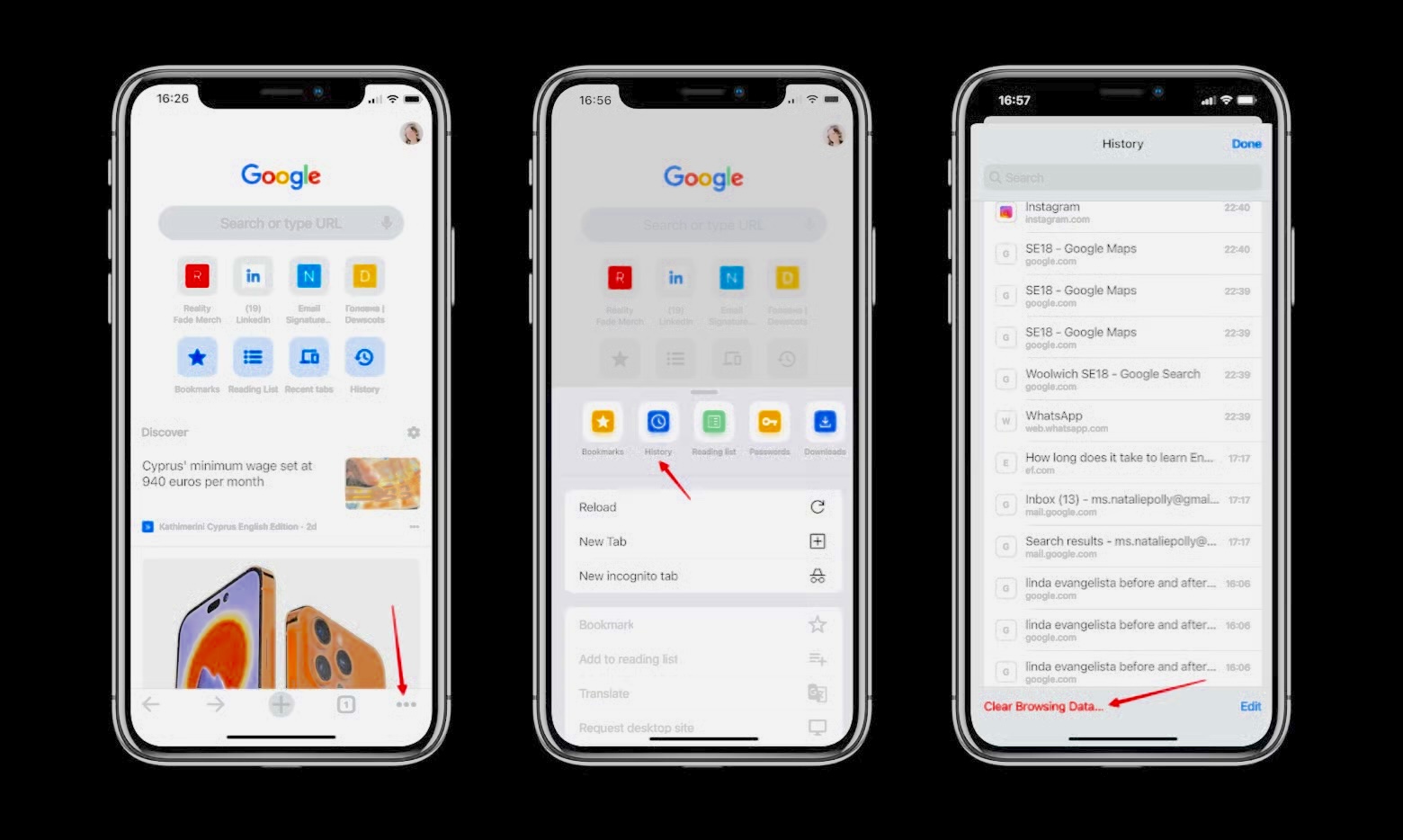
3. Regularly Clear Your Browser History
This is one of the simplest ways to maintain privacy on shared devices.
Clear:
- browsing history
- cookies
- cache
- download history
Most browsers allow you to automate this process.
4. Stick to Encrypted (HTTPS) Websites
HTTPS protects your data from being intercepted.
Look for:
- a padlock icon in the address bar
- URLs beginning with https://
This ensures your searches and page content remain private.
Bonus: Helping Children Stay Safe Online
Parents often want to protect their children without invading their privacy. The goal is to create a safe digital environment while teaching responsible online behavior.
Tools like parental‑control apps can help parents:
- monitor browsing activity with consent
- block harmful websites
- set screen‑time limits
- guide children toward safer online habits
The key is open communication and mutual trust.
Conclusion: Your Wi‑Fi Bill Will Never Show Your Search History
To recap:
- Your Wi‑Fi bill does not and cannot show your search or browsing history.
- Privacy laws prevent ISPs from sharing that information.
- ISPs track data usage, not individual websites.
- Network owners may see limited activity, but not full search details.
- You can protect your privacy with VPNs, private browsing, and good digital habits.